

PST files are created when your Microsoft Outlook is configured with POP3 account. However, at times, these files can get corrupted due to sudden Outlook shutdown, bad sectors on the storage drive, and several other internal or external factors.
You can use ScanPST – Outlook’s built-in utility – to repair the corrupted PST files. But what if this utility fails to fix the file? Read this article to know why ScanPST fails to fix the PST file and the alternative method to repair the file.
Contents
What is ScanPST.exe and How does it Work?
ScanPST.exe – also known as Inbox Repair Tool – is a free PST repair utility provided by Microsoft. It comes preinstalled with your MS Outlook. This tool is specifically designed to repair corrupted PST files. It thoroughly scans the file structure for damage, identifies the errors, fixes the inconsistencies, and rebuilds the file.
Why does ScanPST.exe Fail to Repair PST Files?
Though this Inbox Repair tool can repair the PST files, it may fail to fix the files due to the following reasons:
- If the PST file is highly damaged or severely corrupted.
- It may freeze or crash when repairing large PST files.
- This tool can handle minor inconsistencies only.
- It cannot repair the encrypted PST files.
- If PST file is accessed by Outlook or any other program during the repair.
- If the user account lacks the permissions (read/write) on the PST file or its folder.
- If there are bad sectors on the hard drive where the PST file is stored.
Alternative Method to Repair PST files when ScanPST Fails
As mentioned above, it may happen that ScanPST fails to repair the PST file. In this case you can opt for a trusted professional PST repair tool like Stellar Repair for Outlook which is the best option available. This advanced tool can repair large, severely corrupted PST files. Also, this tool has an auto-split function that can split up a big PST file into many smaller files – which are less prone to corruption.
Additionally, you can save the repaired file items in formats such as RTF, PDF, HTML, MSG, and more. The tool has a user-friendly interface that makes the process simple even for non-tech users. It supports all the versions of Outlook.
Let’s see how to use this tool to repair corrupt PST file:
- First, you have to download and install the application from the official website of Stellar Repair for Outlook.
- Launch the software.
- Now, you will see two options: List Profile and Choose Manually.
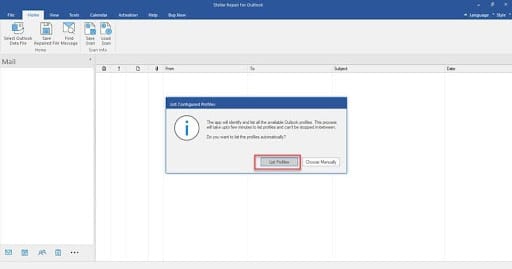
- Choose List Profiles. The software will automatically fetch the PST files linked to your Outlook profile.
- If you want to select the PST file from another location, select Choose Manually.
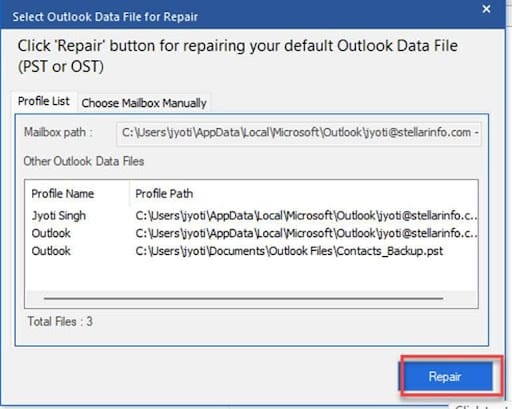
- Click on Repair.
- Once the scanning process is complete, the tool will display all your mailbox data in a three-pane preview window.
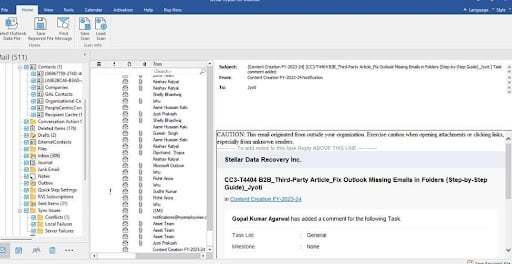
- Click on Save Repaired File.
- Choose the file format as PST.
- Click on Browse.
- Choose the desired location where you want to save the repaired PST file.
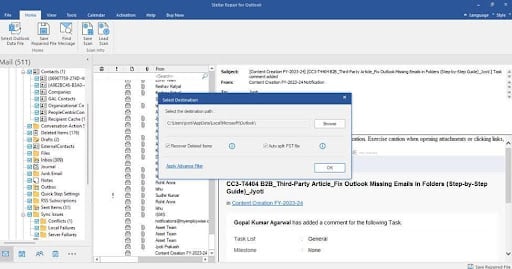
- Click OK.
Now, you can import your repaired PST file into Outlook. To do this, you can use the Import/Export wizard feature and restore all your mailbox data.
A Quick Comparison – ScanPST vs Stellar Repair for Outlook
| Feature | ScanPST (Inbox Repair Tool) | Stellar Repair for Outlook |
| Repairing Capability | Fixes only minor corruption issues | Repairs even severely corrupted PST files with ease |
| File Size | Freezes or fails when repairing large PST files | No file-size limitation; repairs large PST files efficiently |
| Encrypted / Password-Protected PSTs | Not supported | Fully supported |
| Recovery of Deleted Items | Not available | Recovers deleted items |
| Recovery Accuracy | May skip unreadable data blocks | Recovers all accessible data without loss |
| File Preview after Repair | Not available | Provides full preview of mailbox items |
| Auto Split Large PSTs | Not supported | Supported |
| Saving Options | Saves only to PST | Saves to PST, EML, MSG, PDF, HTML, RTF, etc. |
| Ease of Use | Basic and manual | User-friendly interface |
| Log File Generation | Minimal diagnostic logs | Detailed scan logs for tracking and reference |
Conclusion
ScanPST is helpful in repairing corrupted PST file but it sometimes fails to repair the file due to various factors mentioned in this article. In this case, you can look for an alternative to ScanPST. Stellar Repair for Outlook is one of the reliable and efficient PST repair tools that can efficiently repair large, highly corrupted PST files. It can restore all the mailbox items to a new PST file.